Assuming you have an existing SSL/TLS instance and need to renew your server certificate due to an impending certificate expiry. The certificate request remains unchanged and depending on the Certifying Authority that issued the certificate will only require the original certificate request to renew the certificate.
Note: In our case, root & intermediate certificates are valid until 2030, therefore we renewed only the server.crt which was due for expiry on Jan 11,2023. Steps to renew the ca or intermediate certificates will therefore be out of scope here.
Steps here are for reference only. It is always recommended to follow Oracle document (Doc ID 1367293.1) as steps change time to time.
Pre-outage steps:
1. Backup the existing wallet and any associated files in your wallet directory.
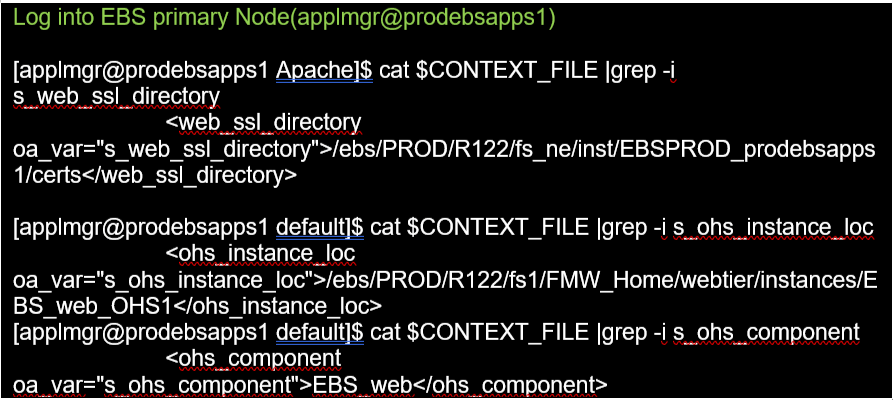
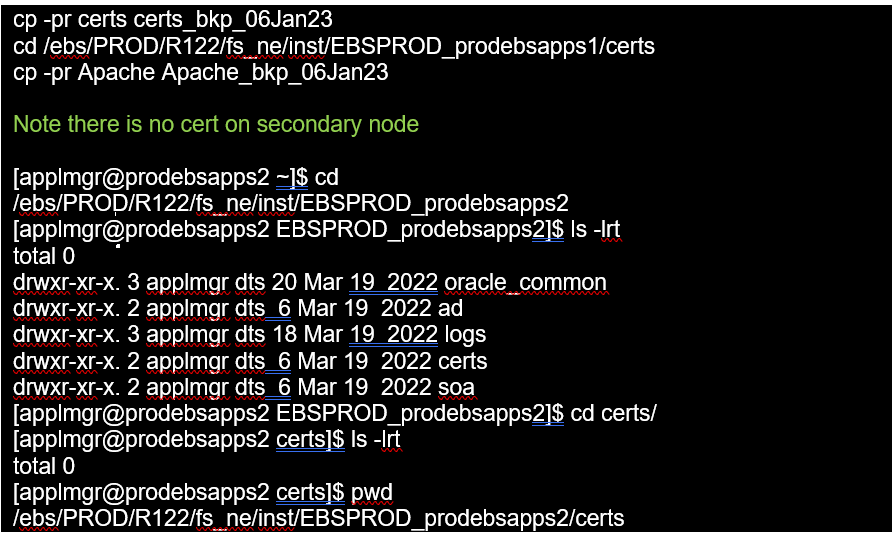
Take following backups:
context_file, <s_web_ssl_directory>/Apache, wlsSSLArtifacts folder & cwallet.sso files from all the locations mentioned below


2. Copy over your newly issued certificate
If you were also provided updated root and intermediate certificates, copy these over as well to your wallet directory.
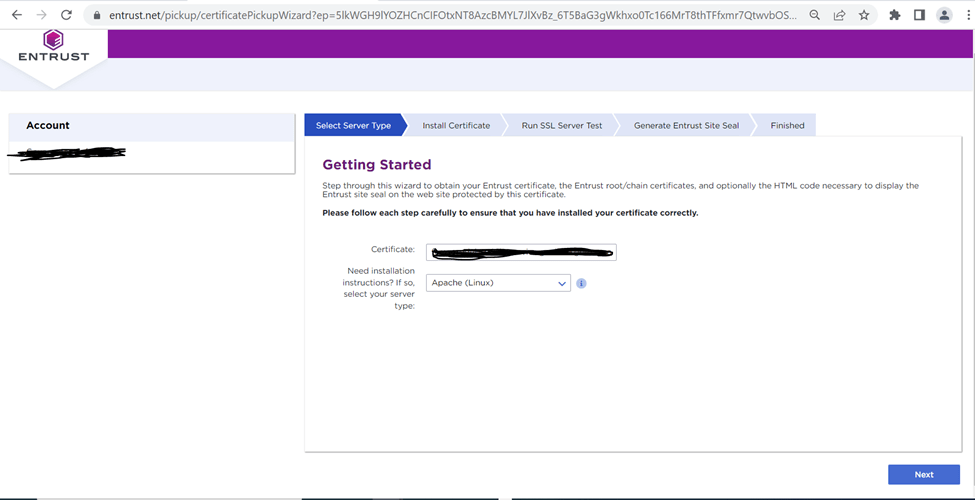
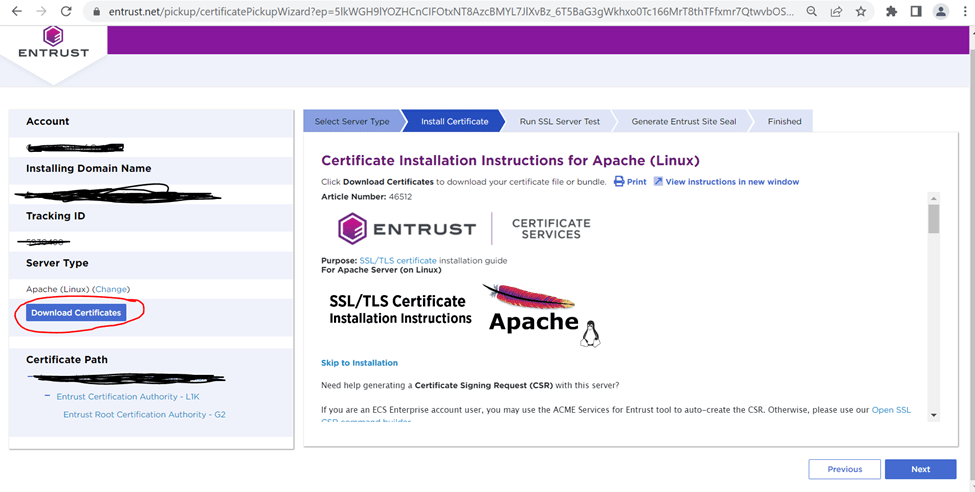
Download the certificate from the link provided

Create staging location for the cert file and save as server.crt
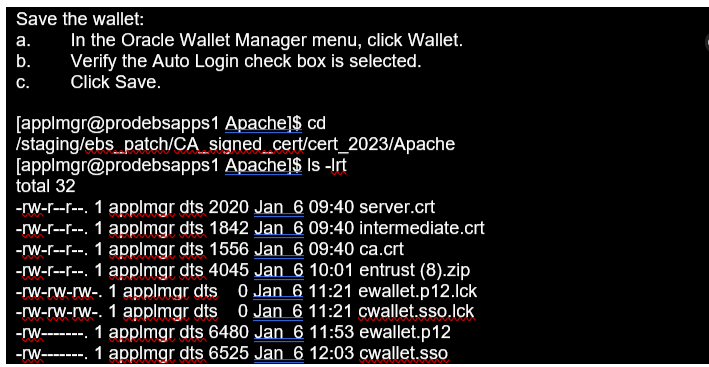
The certificates are copied on a staging location /staging/ebs_patch/CA_signed_cert/cert_2023/Apache on the server and renamed as below

3. Import the new server.crt into wallet files copied onto the staging location
Perform below steps:
· Start the Oracle Wallet Manager
· Open your existing wallet.
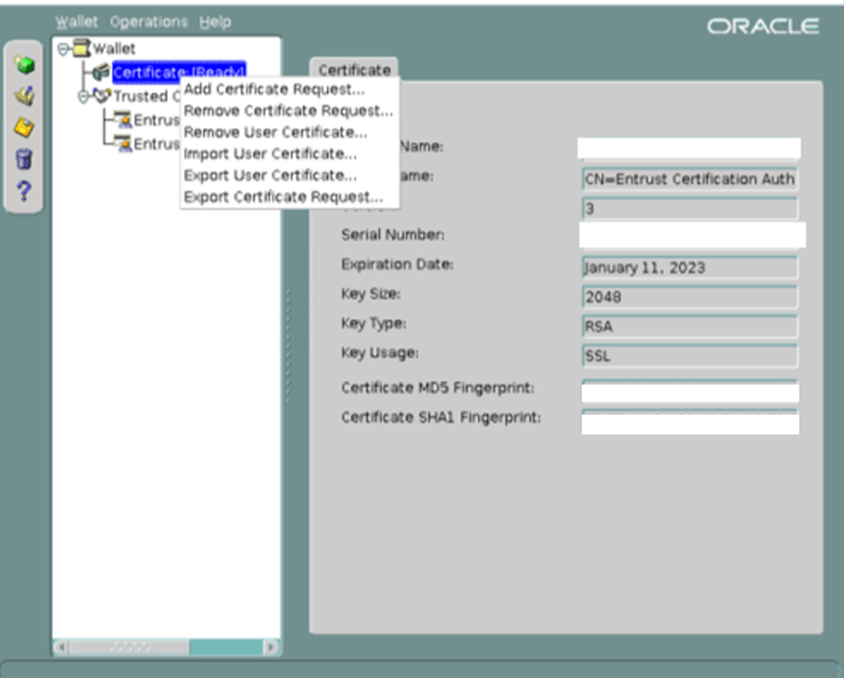
· Highlight ‘Certificate: [Ready]’
· Right-click and select ‘Remove User Certificate’.
· Acknowledge ‘Yes’ for removal.
· This changes the ‘Certificate: [Requested]’
· Import the new ‘User Certificate’ — server.crt
· This changes ‘Certificate: [Ready]’ once again.
· Save the updated wallet and exit OWM.



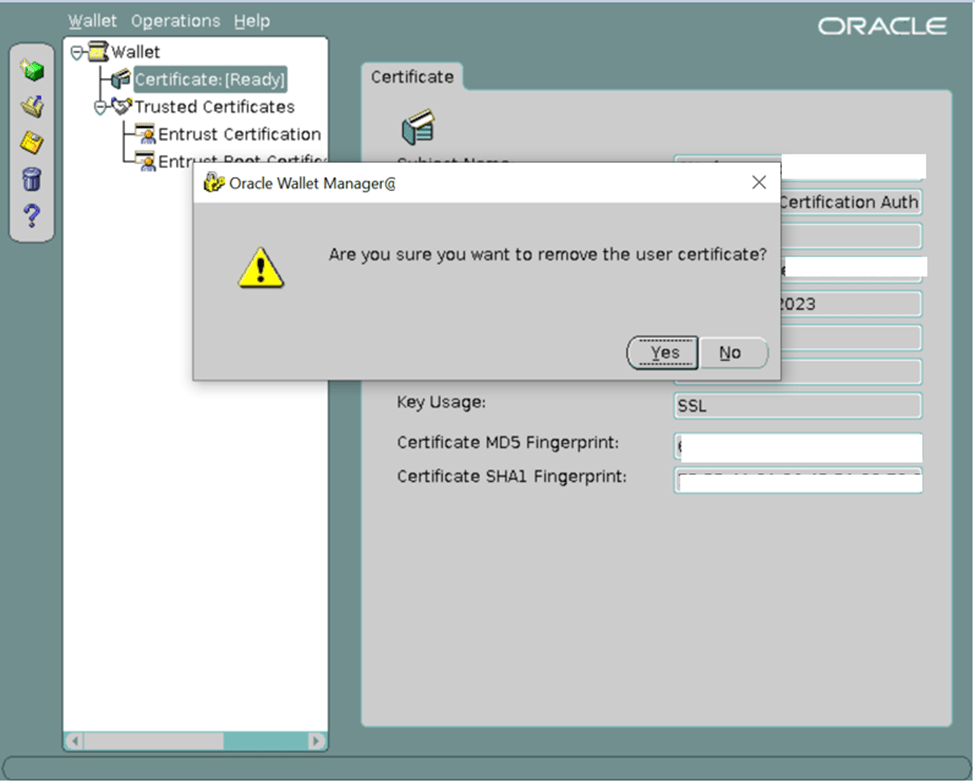
Click on Yes
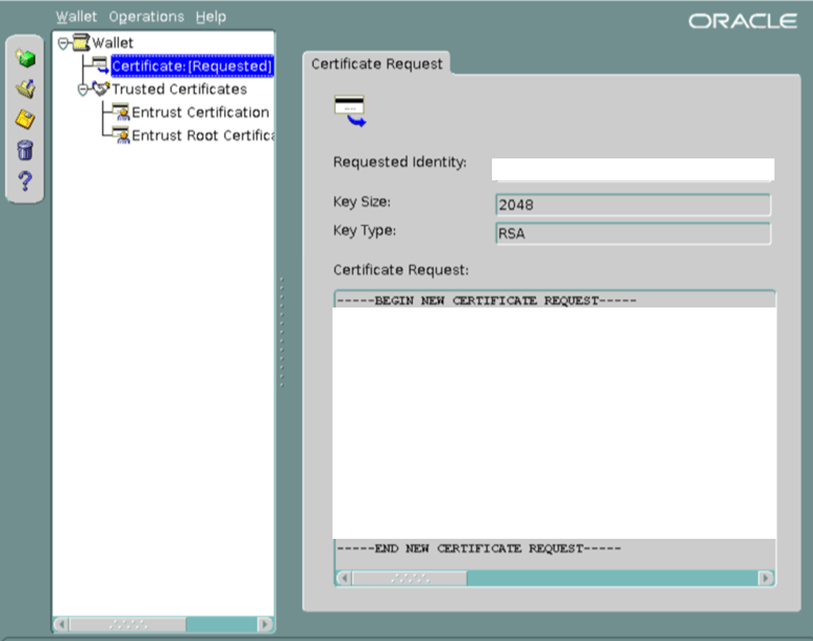
Right click & Click on Import User Certificate
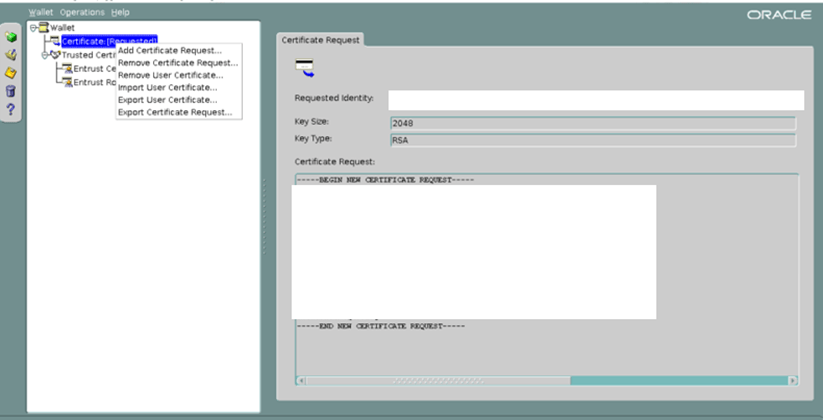

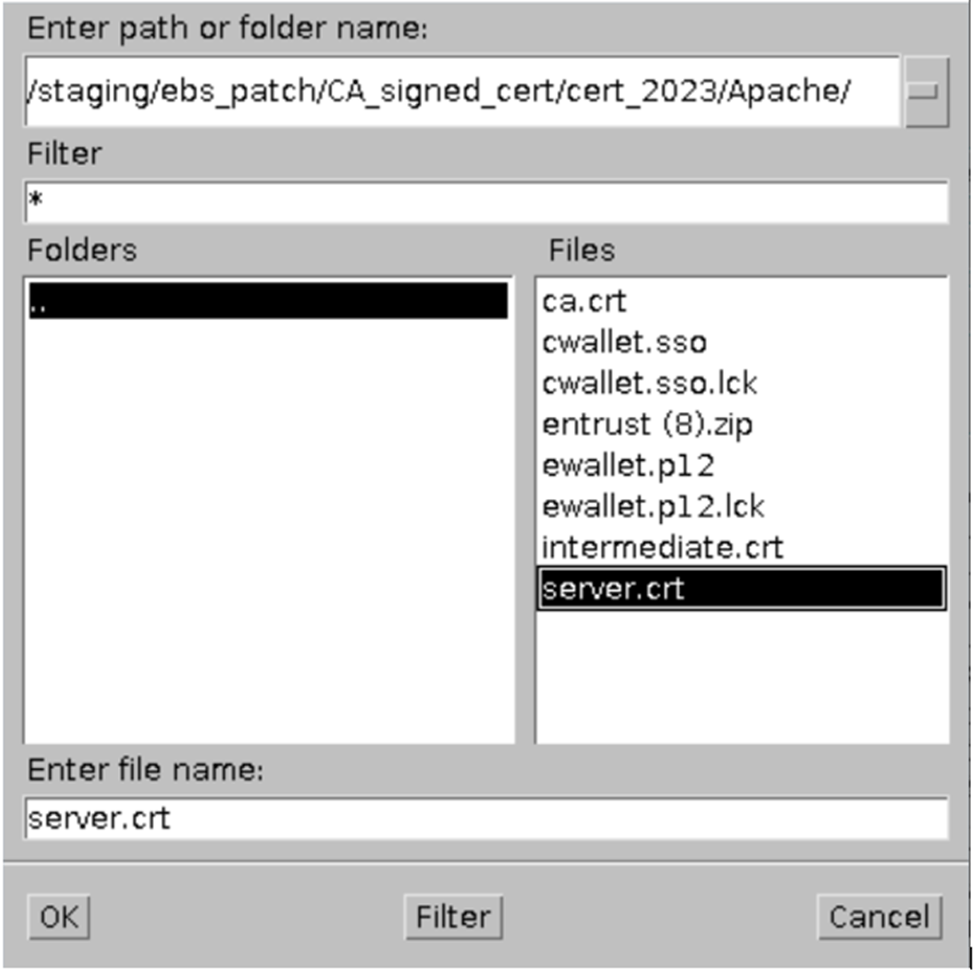


Save


Exit

4. Add the contents of root & intermediate certificates to the b64InternetCertificate.txt file located in the 10.1.2 ORACLE_HOME/sysman/config directory – this step is not required since we don’t need to import the CA Certificate, therefore we do not need to add the contents of the ca.crt file to the b64InternetCertificate.txt file located in the 10.1.2 ORACLE_HOME/sysman/config directory

Outage steps:
1. Disable cronjobs if any
2. Stop the ebs application on all middle tier nodes
3. Make sure no applmgr processes are alive
4. Now copy the new wallets files from /staging/ebs_patch/CA_signed_cert/cert_2023/Apache into Apache
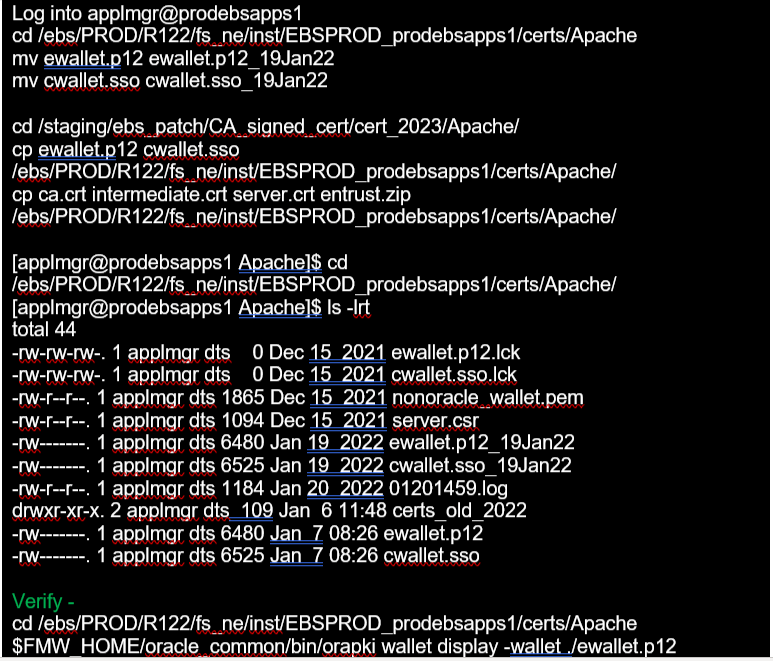

5. Modify the Oracle HTTP Server Wallet

6. Recreate the ewallet.jks with the updated certificate


7. Start the Application Tier Services
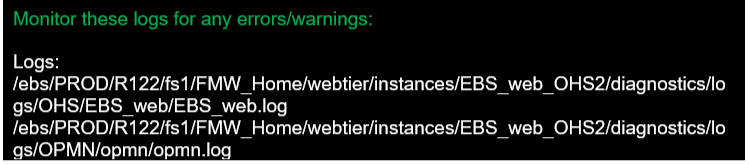
8. Check validity of the certificate

9. Database Tier Setup

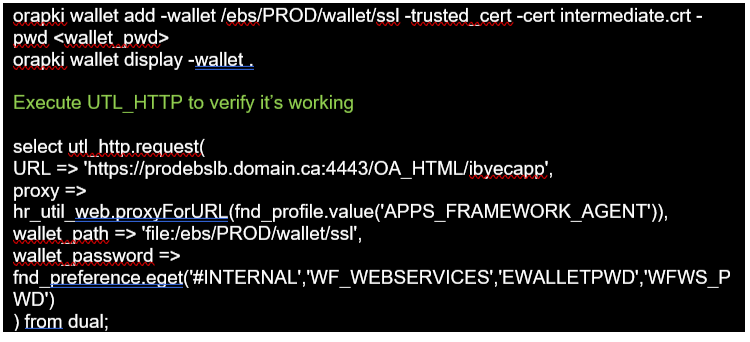
10. Run fs_clone
11. Enable cronjobs
12. Reference: Enabling TLS in Oracle E-Business Suite Release 12.2 (Doc ID 1367293.1) -> 8.1 Renew Revoked or Expired Certificates
Note: As of June 2022, the above document has been updated to stop replacing the FMW auto-generated, self-signed certificate for the OPMN Remote Port and OHS Admin Port in the following locations:
$FMW_HOME/webtier/instances/<s_ohs_instance>/config/OHS/<s_ohs_componet>/proxy-wallet
$FMW_HOME/webtier/instances/<s_ohs_instance>/config/OPMN/opmn/wallet/cwallet.sso
$EBS_DOMAIN_HOME/opmn/<s_ohs_instance>/<s_ohs_component>/wallet
$EBS_DOMAIN_HOME/opmn/<s_ohs_instance>/wallet
If you have followed the above Oracle document in the past, you will most likely have short-lived CA signed certificates being used for FMW internal communication. You should create a self-sign certificate and copy them to the locations above and keep the CA signed certificate in the following location as is:
$FMW_HOME/webtier/instances/<s_ohs_instance>/config/OHS/<s_ohs_component>/keystores/default/
 Tech Talks with Indraneil