This may be due to missing Materialized Views (MV) or table structures being changed without your knowledge. Don’t worry, I’ve got you covered with a real-life example of how I resolved a similar issue.
Imagine having OLTP transactions and ETL reporting jobs all pointing to the same E-Business Suite database, and during an upgrade, a critical MV required by the ETL jobs gets dropped as part of the cleanup effort. This scenario is not uncommon, and it can be a nightmare for the reporting team.
Recently, one of our clients faced a similar issue after upgrading to EBS R12.2, and it was not caught during QA. The MV XXRBA.XXRBA_ARREARS_DET_V that the ETL jobs referred to was missing, and the jobs failed post-upgrade.
After investigating the issue, we found out that the MV had been dropped as part of the upgrade and was recommended by Oracle. However, the Application Developer was unaware of the MV’s usage, and the Reporting team was not involved during UAT or QA testing, which could have avoided the problem.
To resolve the issue, we recreated the MV by extracting the DDL from an existing R12.1.3 environment. However, during the recreation attempt, we encountered an error message “ORA-00904: “APPS”.”XXRBA_ARREARS_REPORT_PKG”.”GET_DAYS_DUE”: invalid identifier”.
After much troubleshooting sessions, it was found out that MVs can’t be directly created in editioned databases. Instead, a logical view(#) has to be created first followed by MV creation using ad_zd_mview.upgrade.
Step 1. Create a logical view “XXRBA”.”XXRBA_ARREARS_DET_V#” first
Step 2. Create MV based on the logical view using ad_zd_mview.upgrade procedure:
exec ad_zd_mview.upgrade(‘XXRBA’,’XXRBA_ARREARS_DET_V’);
Step 3. Perform MV full refresh
BEGIN DBMS_MVIEW.REFRESH(‘XXRBA’,’XXRBA_ARREARS_DET_V’,PARALLELISM=>12);END;
To prevent similar issues, it’s crucial to review the structural changes that come with the EBS upgrade and identify any potential issues beforehand. This can be done by referring to the documentation provided by Oracle.
If you’re facing a similar issue, don’t panic! Just follow this example or get in touch for any assistance you may need.
Here’s how you can use EBS data model report to compare objects during EBS R12.1.3 to EBS 12.2.11 upgrade.
Step 1. Please download the below zip from the note id 1290886.1

Step 2. Unzip the file “DataModelComparison_12.1.3_12.2.11.zip”


Step 3. Open this file … DataModelComparison_12.1.3_12.2.11/12.1.3_12.2.11/DataModelComparisonReport.html
Step 4. You can select the desired module say “AP” from the left panel, on the right panel select “Regular Tables” to view what all changes have been introduced
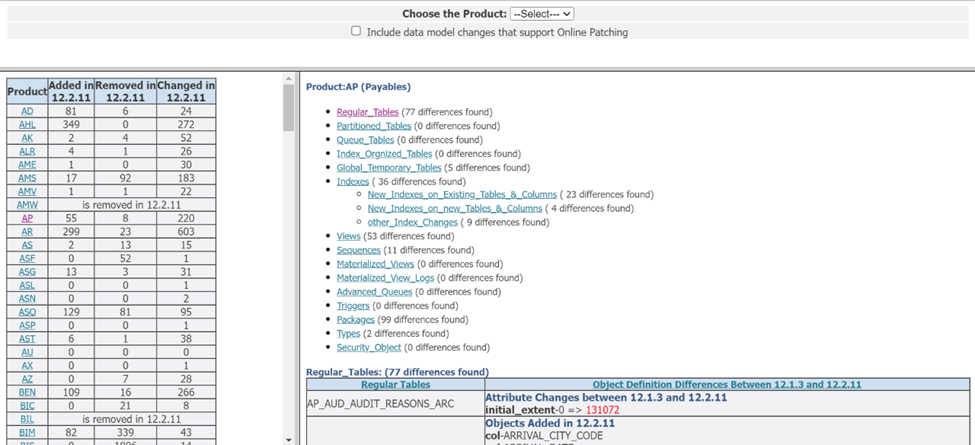
Step 5. For example, please see all the changes for AP_INVOICES_ALL table.

| Reference: EBS Data Model Comparison Report Overview [VIDEO] (Doc ID 1290886.1) 12.2 E-Business Suite Upgrade Of Custom Materialized Views Fails Due To Changes Required For 12.2 ADOP Editioned Objects (Doc ID 2205375.1) |
 Tech Talks with Indraneil